 Vzato
Help
Vzato is a medication reminder app for iPhone, iPad and Mac. Here are short guides, step by step. Each section covers one task. Button names are the same as in the app.
First start
At first start Vzato guides you through allowing notifications and adding your first medication. Just read and tap the button at the bottom.
- Open the Vzato app.
- On the screen about notifications, tap Allow notifications.
- Your phone asks whether Vzato may send notifications. Tap Allow.
- Then enter your first medication. The app guides you. The next section explains it in detail.
Why notifications matter: without them Vzato cannot remind you at dose time. You will not hear the reminder, and it will not show on the Lock Screen either.
Tapped the other button by mistake? No problem. See I did not get a reminder.
Add a medication
- Tap Medications at the bottom. On the iPad and the Mac it is in the sidebar on the left.
- Tap + at the top. If you have no medications yet, there is a big Add medication button in the middle.
- In Name, type the name of the medication, for example Ibuprofen.
- In Dose, e.g. 400 mg, you can copy the strength from the package. This is optional.
- Under Schedule, choose the days. Highlighted days are on. At first all days are on.
- Set the Time. Take it more than once a day? Tap Add time.
- Under Meals, choose Any time, Before a meal, With a meal or After a meal.
- Under Dose and supply, choose the Unit (tablets, drops, millilitres…) and set the Amount per dose with − and +. Half and quarter tablets work too.
- Want to keep track of how much you have at home? Turn on Track supply and type how much you have now in Amount at home.
- Tap Save at the top right.
Before a meal: set how long to wait before eating (Eat after). When you confirm the dose, Vzato later tells you “You can eat now”.
Taking it only for a while? Turn on End date. To change a medication later: Medications › tap the medication › Edit.
When a reminder comes
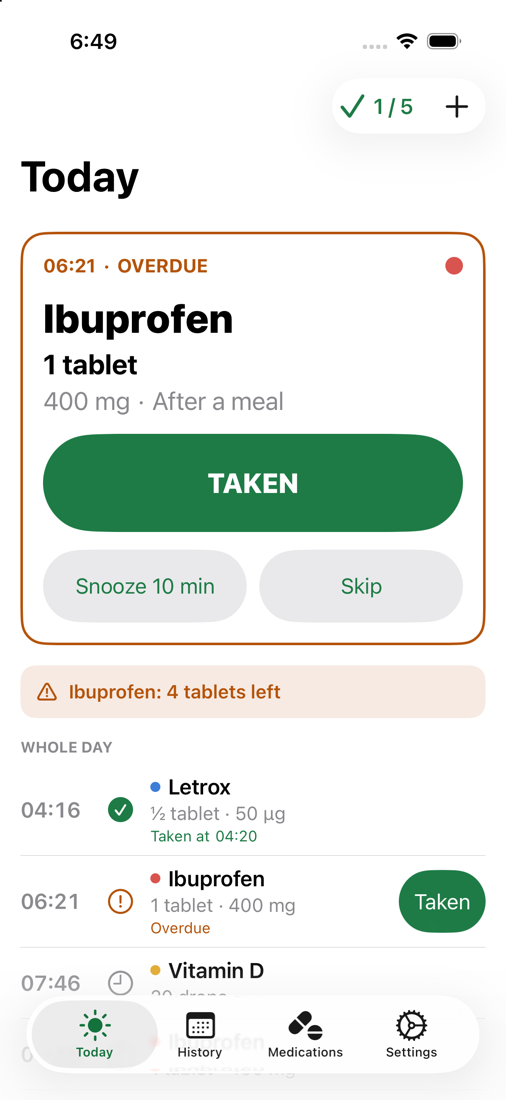
At dose time you hear a sound and see a notification. The dose that is due is also at the top of Today, on the big card.
You took it
- Take the medication.
- Tap the big Taken button. Done. Vzato notes the time.
You can tap Taken in other places too:
- In the notification. Touch and hold the notification, then tap Taken. You do not need to open the app.
- On the widget on the home screen or the Lock Screen.
- On Apple Watch. The reminder from your iPhone also shows on the watch, with Taken, Snooze 10 min and Skip.
You can't right now
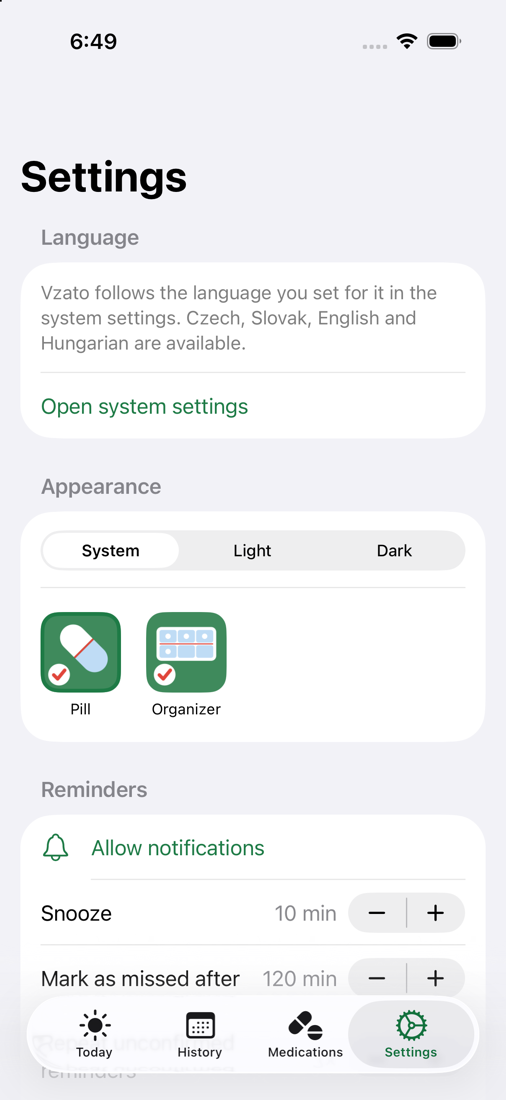
Tap Snooze 10 min. Vzato reminds you again in 10 minutes. Change the time in Settings › Snooze.
You are leaving this dose out
Tap Skip. The dose is recorded as skipped and the supply does not change.
You made a mistake
- Right after you tap Taken, Undo appears at the bottom for a few seconds. Tap it and the record is gone.
- Later: in the Whole day list, touch and hold the medication's row (on the Mac, right-click) and choose Reset.
Why don't I see the Taken button yet?
The Taken button appears 30 minutes before the dose time. Until then the card only shows “Next dose at …”. This protects you from taking a medication too early or twice.
Need to take a dose earlier? In the Whole day list, touch and hold the medication's row and choose Taken. Vzato asks whether you really want to take it early.
If you took the same medication a short while ago, Vzato asks “Take this dose?”. Tap Take anyway only if you are sure.
If you do not confirm a dose, Vzato reminds you again. Set how many times in Settings › Repeat unconfirmed reminders.
Supply: how much is left
With Track supply on, Vzato subtracts the dose by itself every time you tap Taken.
How much is left
- Tap Medications, then the medication.
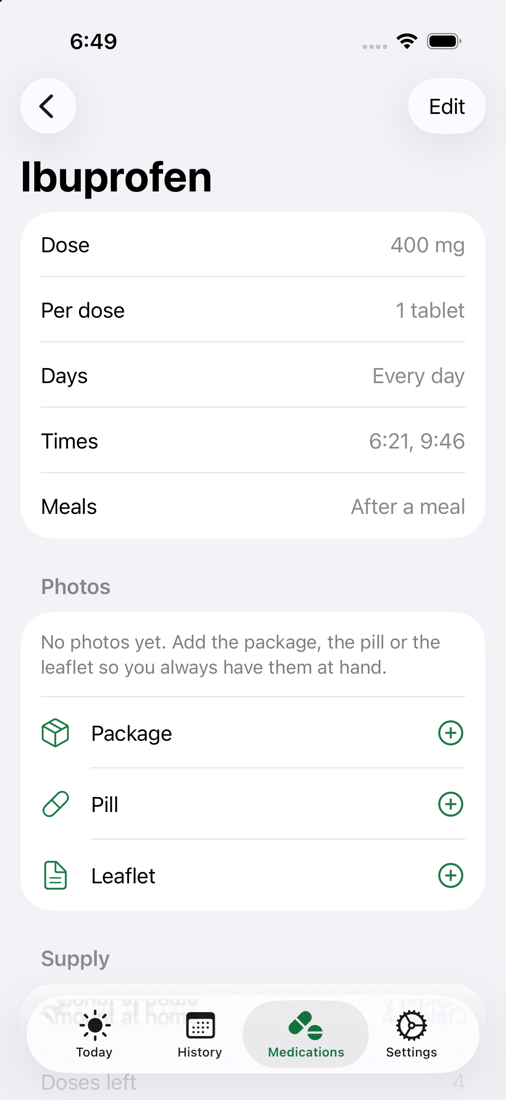
- Under Supply you see Amount at home, Doses left, when it Runs out and Get more by.
When to get more
When the supply drops below Warn when below, you get a notification and an orange strip appears on Today, for example “Ibuprofen: 4 tablets left”. Vzato also warns you a few days ahead (Settings › Warn before running out).
You bought a new pack
- Medications › tap the medication › Edit.
- In Amount at home, type how much you have at home now in total.
- Tap Save.
Supply check
Now and then, count how much you really have at home. That shows whether you forgot to record a dose.
- Medications › tap the medication › Count and check supply.
- Count the tablets (or other units) and type the number.
- Vzato shows whether the count matches the records. If more is missing, it offers Record the missing doses as taken.
- Tap Save.
Photos of the medication
Take a photo of the package, the pill and the leaflet. You will always have them at hand, at the doctor's too.
- Medications › tap the medication.
- Under Photos, tap ⊕ next to Package, Pill or Leaflet.
- Choose Take photo or Choose from library. For the leaflet on the iPhone and iPad you can choose Scan leaflet, several pages too.
Which photo shows on Today
Below the photos is Photo on Today. Choose Pill, Package or Don't show. The photo then appears on the big card with the medication. Tap it to see it larger.
Photos stay inside Vzato. They are not saved to your photo library.
History and summary for the doctor
- Tap History at the bottom.
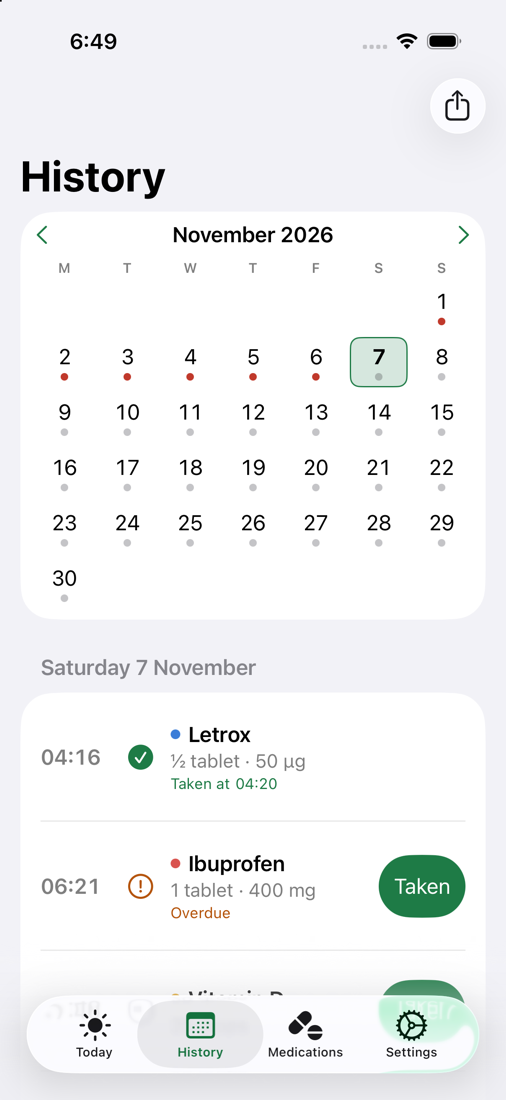
- Each day in the calendar has a dot. Green: all taken. Red: something was missed. Grey: doses still to come.
- Tap a day. Its doses are listed below the calendar.
Correcting a day
Took the medication but forgot to tap? Choose the day and tap Taken next to the dose. It is recorded at the planned time.
Other corrections: touch and hold the dose's row and choose Taken, Skip or Reset.
Summary for the doctor (PDF)
- In History, scroll down and tap Summary for the doctor.
- At the top, choose 7 days, 30 days or 90 days.
- At the top right, tap the share button (a square with an arrow, Export PDF).
- Email, save or print the PDF. You can also simply show the summary to your doctor on the screen.
iCloud: iPhone, iPad and Mac
Vzato can have the same medications and records on your iPhone, iPad and Mac. They sync through your iCloud. There is nothing to set up in Vzato.
- Be signed in with the same Apple Account on every device.
- In the iCloud settings, keep iCloud turned on for Vzato.
- Install Vzato on every device. What you record on one shows up on the others shortly after. An internet connection is needed.
To see whether sync works, open Settings › iCloud sync: it shows Last sync and a time.
The data is in your private iCloud. Nobody else, not even the developer, can read it.
I did not get a reminder
Vzato does not need to be open. Your phone schedules the reminders itself. If none came, go through these points.
1. Red warning on Today
Do you see “Reminders are off” at the top? Tap Allow notifications or Open settings. In your phone's settings, turn on Allow Notifications for Vzato.
2. Focus and Do Not Disturb
When Do Not Disturb or another Focus is on (a moon or another small icon at the top), notifications stay silent. Turn it off in Control Center. Or add Vzato to the allowed apps in Settings › Focus.
3. Silent mode
When the iPhone is silenced, a reminder only shows and vibrates. Check the switch or button on the side of the iPhone, and the volume.
4. Sound in Vzato
Settings › Sounds › Medication reminders. Choose a sound and play it with ▶.
5. Refresh reminders
Settings › Refresh reminders. Vzato schedules all reminders again.
Contact
Stuck, or something does not work? Write to info@vzato.app. The author of the app answers.
Please do not put details about your health in the email. They are not needed.
Short help is also inside the app: Settings › Help.
Vzato is not a medical device
Vzato only reminds you of your medications and keeps your own records. It gives no advice and does not replace your doctor or pharmacist.
Your doctor decides how much to take and when. If you are unsure, ask your doctor or pharmacist.